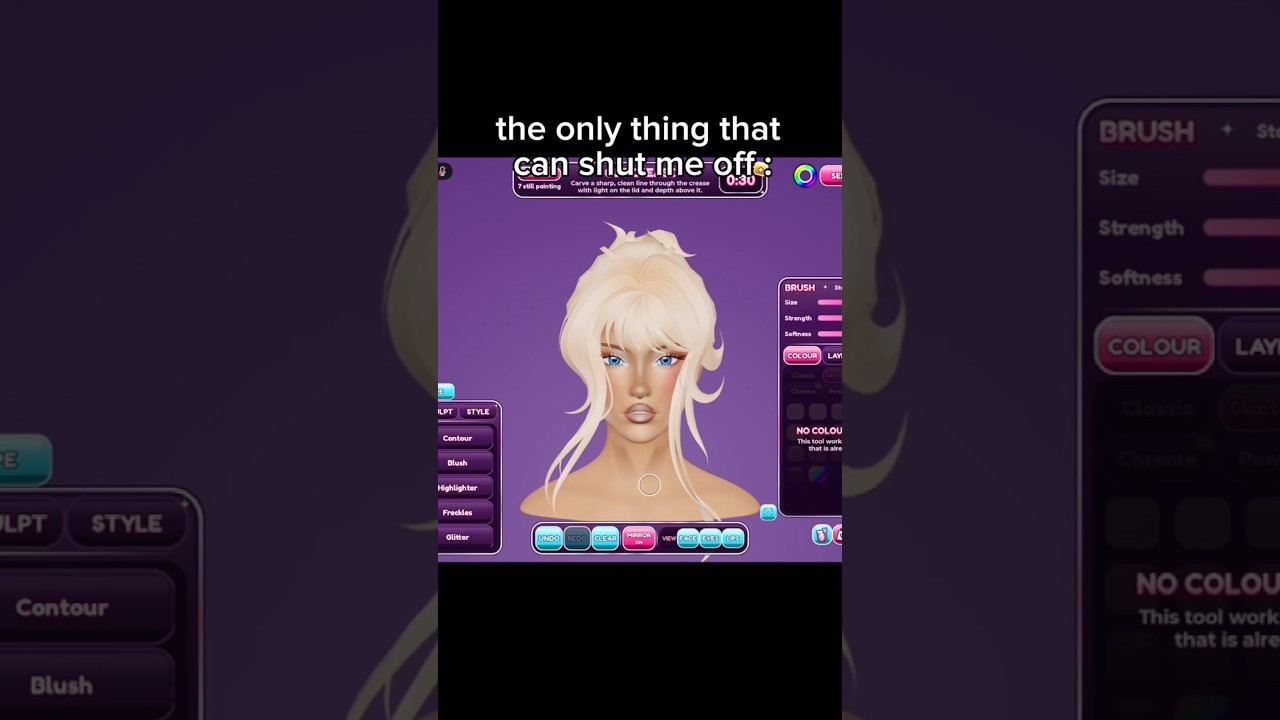
Facecard brushes fall into two named buckets the developer ships with the game: a general tools/brushes pool that handles base, blush, highlight and detail layers, and a dedicated detailed contour brushes toolset that handles cheekbones, nose, jawline and temples. Both are stacked freely up to the default layer cap — or higher, if you own the Increased Layer Limit Game Pass (129 Robux) — and the developer adds new brushes to the catalogue with each game update.
More context
The public Roblox page does not publish a per-stroke control set (size, opacity, blend mode), so brush inputs are limited to what the in-game brush UI exposes at the time of a session. Treat the two categories below as the player-facing inventory you have to work with today.
On this page
Which brush does what
General tools/brushes
Baseline brushes for applying and blending base, blush, highlight and detail layers.
Best for: Use these to spread a wide-area color quickly and to set the skin tone before any sculpting. They are also where you spend the bulk of your layer budget on a heavy Showdown submission.
Detailed contour brushes
Dedicated contour toolset referenced in the community breakdown of the experience.
Best for: Use them to sculpt the cheekbones, nose, jawline and temples. The brush set is intentionally modelled on real-world face-chart makeup, so the input workflow maps directly to a real face-chart.
Contouring workflow (numbered steps)
Pick the head base first and lock it in
The contour shape and palette downstream depend on which head base you are working on top of.
Done when: Head base locked before any brush stroke.
Apply a base color with the general tools/brushes
Spread it wide enough that the final look has a uniform skin tone to read against.
Done when: Uniform skin-tone base covers the canvas.
Define the cheekbone hollows with detailed contour brushes
Light pressure, single stroke, do not blend yet.
Done when: Cheekbone hollow defined before any blending.
Sculpt the nose sides and the jawline
Keep strokes parallel to the bone you are defining.
Done when: Nose and jawline strokes parallel to the bone.
Blend the contour edge with a softer general brush
The point is to remove any harsh line before voting starts; voters down-rank looks with visible brush edges.
Done when: No visible harsh contour edge before voting.
Stack on top with detail layers
The next guide covers which hairs, lashes and rhinestones finish the look. See the Customization & Cosmetics page for what to pick.
Done when: Cosmetic layers added to a blended base.
Common mistakes when picking brushes
- Skipping the contour step. A flat, un-contoured facecard rarely wins votes; the four judging levers explicitly weight spatial placement and contrast, both of which need sculpted structure first.
- Blending the contour too early. Define the hollow before you soften it; blending before the contour lands reads as a blur, not as a shape.
- Forgetting the layer cap. If you stack heavy layered looks, you will hit the default cap mid-build. The Increased Layer Limit pass exists exactly to remove that ceiling, but you only need it if your template habitually pushes past the default.
- Reaching for the contour brush on a base coat. The base color is the general brush's job; trying to lay a base with the contour brush produces streaks that you then have to undo.